Who sees what
What you see in Time-it depends on two things. First, the Time-it permissions that come with your role in the organization. Second, the teams (User Groups) and Time-it projects you belong to, and your role in each group: Member, Reviewer, or Approver.
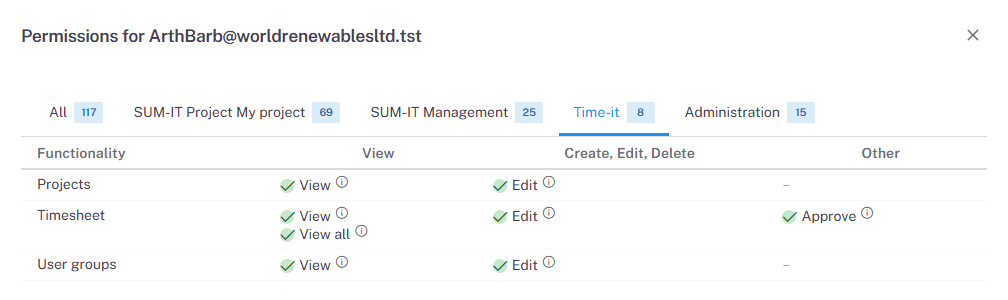
You can check your granted permissions any time. Open the user menu in the top bar and choose Show my permissions. Open the Time-it tab to see only your Time-it permissions. Hover the info icon next to a permission to read its description.
Timesheet permissions
These sit under the Timesheet functionality in Time-it.
| Permission | What it means for you |
|---|---|
View | You can open Timesheet, List View, and Reports, and you always see your own time. You see other people's time only if you are their Reviewer or Approver (see the roles below). That means you and they are in the same User Group, and your role in that group is Reviewer or Approver. |
View all | You can see timesheets for all users in the organization. |
Edit | You can create, change, and delete time that is visible to you (your own, or others' when you can see them). |
Approve | You can work in Approvals for the people and contexts you are allowed to approve. |
Daily report permissions in SUM-IT do not unlock other people's time in Time-it.
The Timesheet, List View, and Reports menus appear when you have View or View all. Without Edit, you can look at time but you cannot log or change it.
Approvals menu
Approvals appears when either of these is true:
- Your role includes
Approveon Timesheet, or - You are an Approver in at least one user group.
A Reviewer in a group can see other members' time on Timesheet and List View (with the Timesheet View permission). That alone does not open Approvals. Approving needs Approve or the group role Approver.
Projects and User Groups menus
| Functionality | View | Edit |
|---|---|---|
| Projects | Opens the Projects menu and project dashboards. | Create, change, and delete Time-it projects (when the screen allows). |
| User groups | Opens the User Groups menu. | Create, change, and delete groups and membership. |
Group roles (Member, Reviewer, Approver)
Inside a user group, each person has one of these roles:
- A Member belongs to the group. Reviewers and approvers in that group can see this person's time (when those people also have the Timesheet
Viewpermission). With the TimesheetEditpermission, they can also log and change time for this person. For example, a team leader on a construction site can log the hours for the whole crew. - A Reviewer can see the timesheets of group members (together with the Timesheet
Viewpermission). This role alone does not show the Approvals menu. - An Approver can see group members' time, and can use Approvals for that group's submissions.
You can belong to more than one group, with a different role in each. Being a member of a Time-it project lets you log time on that project. It does not by itself let you see or approve other people's time. That is set in User Groups.
Settings
The gear opens Administration Settings. You only get there when you have access to Administration. Changing settings for the whole organization (approval period, reminders, timezone) needs permission to edit settings in Administration. Personal date, time, and notification preferences apply only to you.
Typical combinations
These are typical scenarios, showing how permissions and group roles usually come together for people in real work. They describe what people do day to day, not roles you set up in the system. One person can hold more than one of them.
- Time logger. You usually have
ViewandEdit. You log your own hours and submit periods. You may not see Approvals, Projects, or User Groups. - Reviewer of a crew. You have
View, and you are Reviewer (or Approver) in that crew's group. You can open other members' timesheets for that group. If you also haveEdit, you can log and change time for the members of that group too. - Approver. You have
Approve, the group role Approver, or both. You see Approvals and approve or reject the periods of the people you are responsible for. - Administrator. You have
ViewandEditfor User groups and Projects. In User Groups you create, change, and delete groups, and open a group to add or remove people and set who is Member, Reviewer, or Approver. In Projects you create, edit, and delete projects, and open a project's dashboard to manage its tasks, members, name, and colour. Adding someone to a project lets them log time on it, but not see or approve other people's time. - Organization-wide viewer. You have
View all, often together withEditandApprovefor administrators who support the whole company.
Menus are hidden when you do not have the matching permission or group role. An organization administrator assigns organization roles in Administration and group roles under User Groups in Time-it.