After a rejection
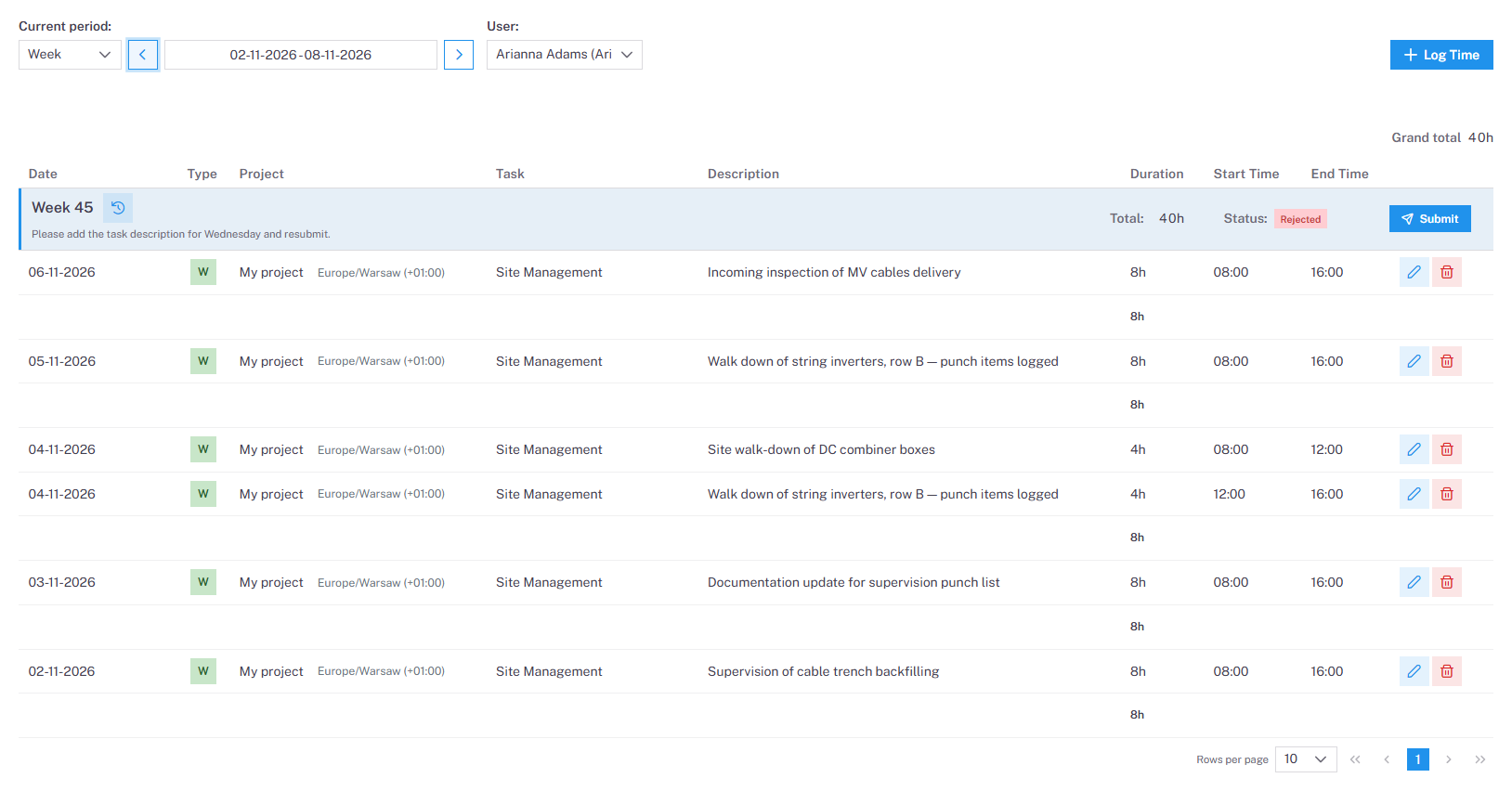
When an approver rejects a period, the status becomes Rejected and the hours are open for correction again. You fix the entries, then submit the period once more. A rejected period is not locked. You can change its hours and submit it again.
What the time logger does
You get a notification, and an email if you turned on Email — my submission outcomes (see Personal display and notifications).
- Open List View and go to the rejected period. The approver's comment is shown under the period name. The history icon next to it shows earlier comments and status changes — the same latest comment also appears in history.
- Fix the entries that were wrong. Use the pencil icon to change an entry, the bin icon to delete it, or Log Time to add a missing one. As soon as you change something, the status goes back to In progress.
- Click Submit again when the period looks right. Confirm Submit for Approval. The status returns to Pending for the approver.
You do not use Unsubmit after a rejection. Unsubmit is only for your own Pending submissions. You can already edit a rejected period. Change the entries, then submit again.
What the approver does next
The period appears again in Approvals as Pending. The approver can review it with the eye icon, then approve or reject again. History keeps earlier rejects and comments, so the trail of decisions stays visible.
When a rejection stays rejected
Sometimes a period is left Rejected on purpose (for example hours that should not be approved). You can still edit it. Its hours do not count as approved in Reports until it is submitted again and approved.
Only Approved locks the period against changes. Rejected means "please correct and send again," not "frozen forever."